AR Barcode Scanning SDK

Augmented Reality Barcode Scanner SDK

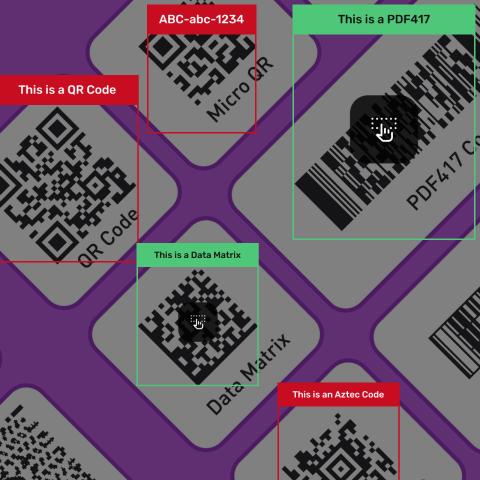
Draw a live overlay on every barcode the camera sees. barKoder's AR Mode outlines each code, shows its value in a header label and lets users tap the codes they want. It is documented for Android, iOS, the Web SDK and every cross-platform framework barKoder supports.

Augmented Reality Augmented Reality

AR barcode scanning SDK

An augmented reality barcode scanner reads codes and draws on the live camera view at the same time. barKoder's AR Mode tracks the position of each detected barcode and anchors an overlay to it, so users see which codes were read, which are selected and what they contain without switching screens or opening a scan history. It handles several barcodes in view at once.

What the barcode AR overlay shows

  • A bounding box or a tight outline that follows the shape and angle of each code
  • A header label above the code, with a format you set, such as the value and the barcode type
  • Different colors for selected and non-selected codes
  • Tap to select, and double tap to freeze or unfreeze scanning
  • Matching codes highlighted when you search for one value among many
Get a trial license key

What your app does with it

AR Mode returns the decoded results to your app. Your app decides what to show and do next:

  • Show stock levels
  • Confirm a pick
  • Check prices
  • Flag expiry dates
  • Verify a pallet
  • Find one parcel
  • Identify a part
  • Check a medication

For background on the technology and where it is used, read Augmented Reality (AR) in barKoder Scanner: a smarter way to scan.

How AR barcode scanning works

The overlay engine tracks barcode positions in real time and anchors information over each detected code in the camera preview.

  1. Scan The SDK camera view reads every enabled barcode type in the frame.
  2. Track Each detected code gets an outline anchored to its position as the camera moves.
  3. Label A header above each code shows the decoded content, always or only when the code is selected.
  4. Select Users tap codes to select them, or the SDK selects new codes automatically.
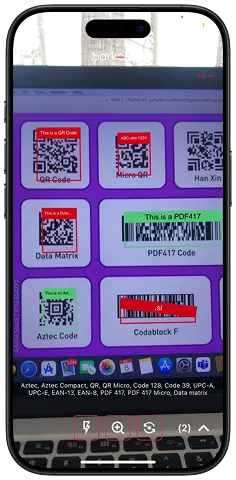
barKoder AR mode on iPhone highlighting QR, Data Matrix, PDF417 and Aztec codes on a screen
Codes found in real time QR, Data Matrix, PDF417 and Aztec in one view.
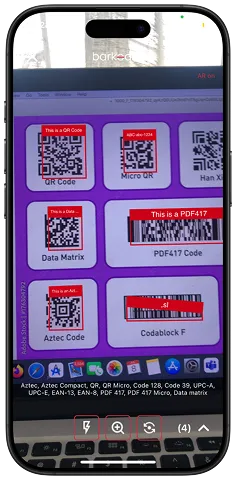
barKoder AR scanning showing labeled overlays on multiple barcodes, four codes detected
Overlay on each location Labels drawn on four detected codes.
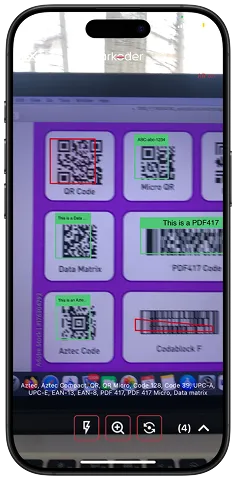
barKoder AR scanning marking decoded barcodes green while still reading the rest
Decoded codes marked Read codes turn green while the rest are still scanned.
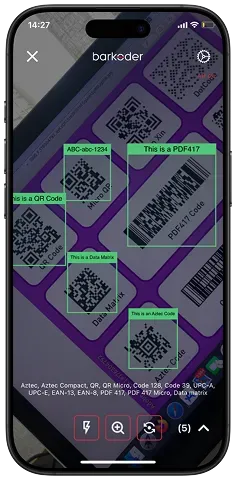
barKoder AR scanning with green labeled overlays on five decoded barcodes at an angle
Works at an angle Five decoded codes labeled from a tilted view.

See AR Mode running in the Augmented Reality Barcode Overlays in barKoder video.

Choose how users interact with the overlay

Pick the AR mode that fits the workflow, then decide when the header label appears.

AR modes in the barKoder SDK
Mode Behavior Typical use
interactiveEnabled AR is on, and new barcodes are selected automatically Every new code in view counts by default
interactiveDisabled AR is on, but new barcodes are not selected by default Users tap only the codes they need
nonInteractive AR is on, and selection happens automatically without user interaction No taps needed
matchFilter Highlights the barcodes that match the values you set Search & Find: locate one code among many
Header label display
Setting Result
never No header text
always A header above every detected barcode
onSelected A header only when the barcode is selected

Style the overlay to match your app

The BarkoderARConfig class controls AR behavior, overlay rendering and styling, gestures and header display. The API reference also lists result limits, header text colors and margins, and the option to return results only at the end of an AR session.

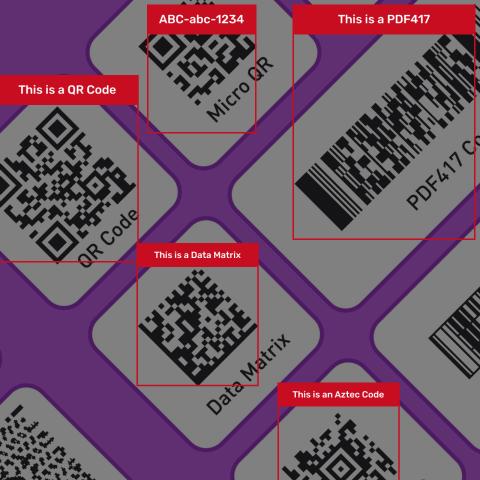
AR visuals sample: red bounding boxes and labels drawn around each detected barcode
Bounding boxes Highlight each scanned barcode as it moves.
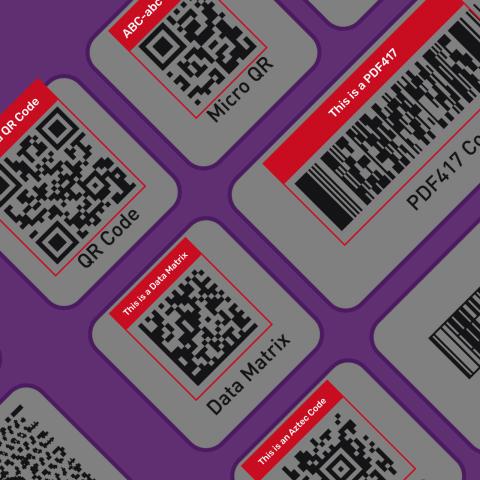
AR visuals sample: QR, Micro QR, Data Matrix, PDF417 and Aztec codes with red text labels
Header labels Show the value or type above each code.
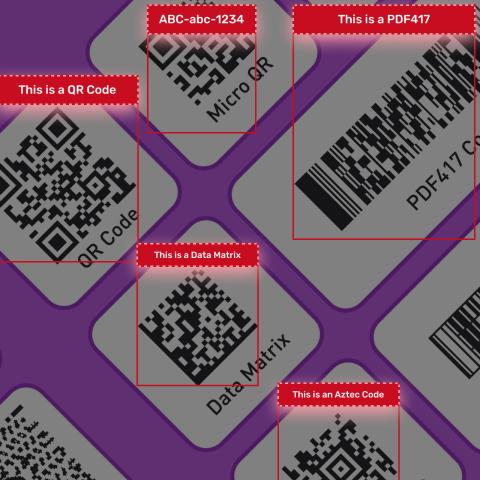
AR visuals sample: barcode overlays with glowing dashed red label borders
Label styling Set header height, text colors and margins.
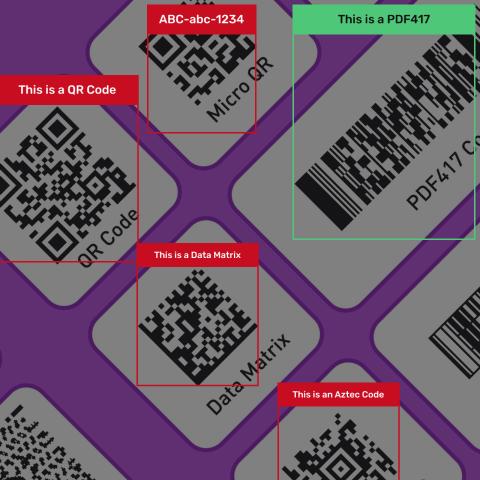
AR visuals sample: decoded PDF417 highlighted green while other codes stay red
Selection colors Set one color for selected codes and another for the rest.
AR visuals sample: tap-to-select icons on green-highlighted PDF417 and Data Matrix codes
Tap to select Visual feedback on tapped or active barcodes.
Test AR Mode on your own shelves Use a trial license to see how the overlay behaves with your labels and devices. Start an SDK trial

Enable AR Mode in a few lines

Set Full HD resolution and slow decoding for the best results, keep the session open after each result, then choose a mode. These examples are copied from the barKoder docs.

Android

Java
            bkdView.config.setBarkoderResolution(BarkoderResolution.FHD);
            bkdView.config.getDecoderConfig().decodingSpeed = Barkoder.DecodingSpeed.Slow;
            bkdView.config.setCloseSessionOnResultEnabled(false);
            bkdView.config.arConfig.arMode = BarkoderARMode.InteractiveEnabled;
          

Overlay colors and the header label:

Java
            bkdView.config.arConfig.setSelectedLocationColor(Color.parseColor("#FF0000"));
            bkdView.config.arConfig.setNonSelectedLocationColor(Color.parseColor("#00FF00"));
            bkdView.config.arConfig.setHeaderShowMode(BarkoderARHeaderShowMode.ONSELECTED);
          

Web (WASM)

JavaScript
            Barkoder.setCameraResolution(Barkoder.constants.CameraResolution.FHD);
            Barkoder.setDecodingSpeed(Barkoder.constants.DecodingSpeed.Slow);
            Barkoder.setContinuous(true);
            Barkoder.setARMode(Barkoder.constants.BarkoderARMode.InteractiveEnabled);
          

Overlay colors and the header label:

JavaScript
            Barkoder.setSelectedLocationColor("#00FF00");
            Barkoder.setNonSelectedLocationLineColor("#FF0000");
            Barkoder.setHeaderShowMode(Barkoder.constants.BarkoderARHeaderShowMode.ONSELECTED);
          

AR Mode examples for every SDK: Android, iOS, Web, Flutter, React Native, Capacitor, Cordova, .NET MAUI and NativeScript.

Find one barcode among many

A shelf can show twenty barcodes when a worker needs one. With Search & Find, the user enters the value they are looking for and points the camera at the shelf. The scanner keeps checking the visible codes and highlights the match.

The match filter accepts an exact value, a regular expression with flags such as case-insensitive matching, or several values at once. Every result carries an isMatched state. returnOnlyMatchedResults decides whether your app also receives the other codes, and displayOnlyMatchedResults decides whether the overlay shows them.

Step-by-step examples are in the docs for Android and iOS. Read the full walkthrough in Search & Find: a smarter way to locate the right barcode.
Java
        bkdView.config.getDecoderConfig().matchFilter =
        "[\"1234567890128\"]";
        bkdView.config.arConfig.arMode = BarkoderARMode.MatchFilter;
        bkdView.config.arConfig.returnOnlyMatchedResults = false;
        bkdView.config.arConfig.displayOnlyMatchedResults = false;
      

Where teams use barcode AR overlays

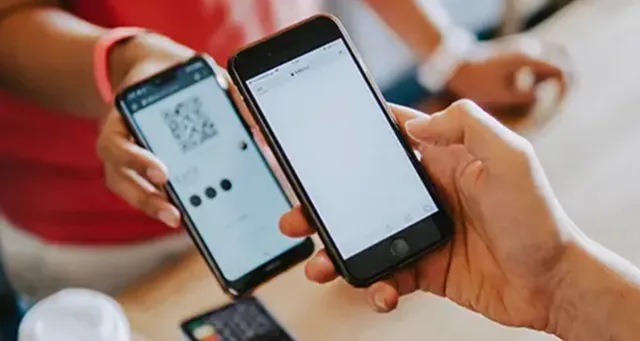
Two smartphones side by side, one displaying a QR code to be scanned

Retail

Show stock availability, prices or promotion tags over products on the shelf, and let store staff answer customers without walking to a computer.

Barcode scanning for retail →
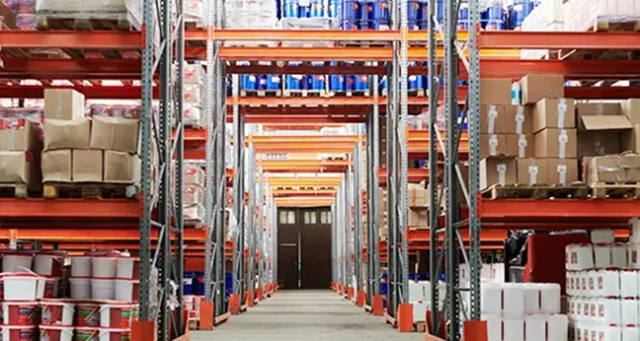
Warehouse aisle with tall pallet racks stocked with boxes and containers

Warehousing

Highlight SKUs during cycle counts and bin checks. Workers see which items are already scanned, so misses and duplicates stand out.

Barcode scanning for warehousing →
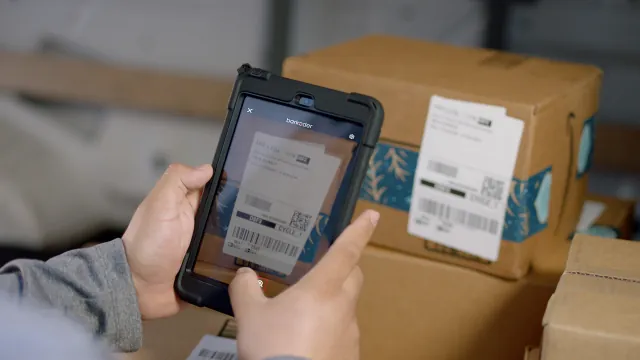
Tablet running barKoder scanning a shipping label barcode on a cardboard box

Logistics and field service

Identify parts, tools and replaceable units, or pick out the right label on a parcel or pallet that carries several barcodes.

Barcode scanning for logistics →

For warehouse teams: Augmented reality is the future of inventory. To read every code in view without an overlay, use Batch MultiScan.

barKoder in warehouse and parcel apps

Operations teams that replaced hardware readers and older scanners with barKoder on phones, tablets and laptops.

MIT Group

Medical supply logistics · Web SDK

More than 3xbetter scanning performance reported

Software scanning in medical supply warehouses, where hardware readers could not be deployed everywhere. Reads very small codes and works in low light.

barKoder has impressed us with its speed and accuracy, even in challenging conditions.Lubos Liska, MIT Group
Read the MIT Group story →

Penguin Pickup

Parcel network · Canada · Web SDK

Fewer retriesand less manual barcode entry

Partner shops and smart lockers scan parcels in the browser on laptops, tablets and phones. Next on the team's list: multi-barcode scanning with AR overlays in the browser.

Read the Penguin Pickup story →

AR barcode scanning resources

Try barKoder on your phone or in your browser

Install the free barKoder demo app, or open the web demo, and scan your own barcodes before you integrate the SDK.

iPhone and iPad

barKoder demo app for iOS

Scan with your camera, or point it at the QR code to open the App Store.

Download on the App Store
QR code linking to the barKoder demo app on the App Store

Android phones and tablets

barKoder demo app for Android

Scan with your camera, or point it at the QR code to open Google Play.

Get it on Google Play
QR code linking to the barKoder demo app on Google Play

Any modern browser

barKoder web demo

Runs the Web SDK in your browser, on desktop or mobile, with nothing to install.

Open the web demo
QR code linking to the barKoder web demo

Test with known samples. Print or display the testing sheet and scan each 1D and 2D barcode with the demo app. The data sheet summarizes the SDK for your team.

AR barcode scanner questions

What is an AR barcode scanner?

An augmented reality barcode scanner reads barcodes through the camera and draws information on top of the live view. Instead of returning one value and closing, it outlines each code it finds, labels it and shows which codes are selected, so users can act on what they see.

Which platforms support barKoder AR Mode?

AR Mode is documented for Android, iOS, the Web SDK, Flutter, React Native, Capacitor, Cordova, .NET MAUI and NativeScript. Search & Find examples are published for Android and iOS, and the Flutter API reference lists the match filter settings. On the web, Search & Find is listed as coming next.

Can AR Mode track several barcodes at the same time?

Yes. AR Mode scans and identifies multiple items in view at once and keeps an overlay on each one. You can cap the number of results per AR session and choose whether results reach your app as they are found or only when the session ends.

Can I show my own data in the barcode overlay?

The header label uses a format string with placeholders, for example [barcode_text] - [barcode_type], and you set its colors, height and margins. To show stock, price or expiry, your app looks up the decoded value in its own system and acts on the selected codes.

What camera settings work best for AR scanning?

The docs recommend Full HD resolution and the Slow decoding speed, with the session kept open after each result. On the web, the example turns on continuous mode with Barkoder.setContinuous(true).

What is the difference between AR Mode and Batch MultiScan?

Batch MultiScan reads many barcodes in one camera view and returns them to your app. AR Mode adds the visual layer on top: outlines, labels, selection and match highlighting on the camera preview.

Does AR scanning need an internet connection?

Only for the license check, which each device needs at least once every 30 days. Scanning runs locally on the device, and the SDK doesn't store personal information retrieved from scanning.

How can I test AR Mode?

Get a free trial license for 30 days and up to 25 devices from the trial page, then follow the AR Mode example for your platform. For volume licensing, see barKoder pricing or request a quote.

Add barcode AR overlays to your app

Test AR Mode on your own shelves, parcels and labels with a free 30-day trial, or talk to an SDK expert about your workflow.