Python

Python Barcode Reader SDK

Read barcodes from images in Python. The barKoder Python barcode scanner library decodes 1D and 2D barcodes from OpenCV and NumPy images, returns the results as JSON, and decodes locally on Linux, Windows and macOS with Python 3.11 or newer.
Python logo for the barKoder barcode scanner SDK for Python

A Python barcode scanner library for images, scripts and pipelines

The barKoder Python SDK wraps the native barKoder decoding engine in a Python module. You load an image with OpenCV, pass the grayscale array to decodeImage, and get back JSON with every barcode found. Decoding runs on your machine, so it fits automation scripts, desktop tools and backend recognition pipelines. Read the September 2024 announcement of Python support.

Get the Python library

  • Download the package from the barKoder Developer Portal, or clone the barkoder-python-sdk repository on GitHub.
  • Each package contains the Barkoder.py module with the compiled SDK, a run.py sample and a qr.bmp test image.
  • Install the sample's dependencies with pip:
Shell
          python3 -m pip install opencv-python numpy
        

On Windows, the package also includes a wheel that you install with pip before you run the sample.

Start your free trial

Requirements

  • Python 3.11 or newer. Contact barKoder if you need an older version.
  • Linux, 64-bit, on x86-64 or ARM64. Ubuntu 22.04 or newer is recommended. The README also lists RHEL, Amazon Linux and CentOS.
  • Windows 10 or 11 on x86-64.
  • macOS 11 Big Sur or newer, as a universal package for Intel and Apple silicon.
  • opencv-python and numpy for the sample. On Linux, libcurl may be needed for licensing.
Open barkoder-python-sdk on GitHub

Read a barcode from an image in Python

This complete example is copied from the barkoder-python-sdk README. It reads qr.bmp, decodes QR and PDF417 codes, and prints each result.

  1. Initialize Call BarkoderSDK.initialize with your trial or production license key.
  2. Configure Enable the barcode types you need, the decoding speed and the region of interest.
  3. Decode Read the image as grayscale with OpenCV and pass it to decodeImage with its width and height.
  4. Use the results Parse the JSON. resultsCount tells you whether one barcode, several or none were found.
run.py
      from Barkoder import BarkoderSDK
      import json
      import numpy as np
      import cv2 as cv
      version = BarkoderSDK.getLibVersion();
      print("SDK version: ", version)
      status = BarkoderSDK.initialize("LICENSE_KEY");
      print("SDK status: ", status)
      #---------------configure the SDK--------------
      QR = BarkoderSDK.constants["Decoders"]["QR"];
      PDF417 = BarkoderSDK.constants["Decoders"]["PDF417"];
      #set desired decoders
      decoders = [QR, PDF417];
      BarkoderSDK.setEnabledDecoders(decoders);
      #set desired decodingSpeed
      decodingSpeed = BarkoderSDK.constants["DecodingSpeed"]["Normal"];
      BarkoderSDK.setDecodingSpeed(decodingSpeed);
      #set desired ROI
      BarkoderSDK.setRegionOfInterest(0, 0, 100, 100);
      #set desired DPM mode
      BarkoderSDK.setDatamatrixDpmModeEnabled(False);
      #---------------configure the SDK--------------
      #---------------read and scan an image---------
      img = cv.imread('qr.bmp', cv.IMREAD_GRAYSCALE)
      assert img is not None, "file could not be read, check with os.path.exists()"
      height, width = img.shape[:2]
      result_json = BarkoderSDK.decodeImage(img, width, height)
      #---------------read and scan an image---------
      #---------------handle the result--------------
      result = json.loads(result_json)
      print("resultsCount: ", result["resultsCount"])
      # the result is a Python dictionary:
      if result["resultsCount"] == 1:
      print(result["barcodeTypeName"])
      print(result["textualData"])
      elif result["resultsCount"] > 1:
      for res in result["results"]:
      print(res["barcodeTypeName"])
      print(res["textualData"])
      print("---------------------------")
      else:
      print("No barcode found.")
      #---------------handle the result--------------
    

Each result includes barcodeTypeName, textualData, binaryData, the four corner points of its location and a GS1 flag. See the Python API reference for every method and constant.

Barcode extraction for scripts and backend pipelines

Python usually processes still images, not live camera streams. These settings from the Python docs help when you run the decoder over many files.

Several barcodes per image

Batch MultiScan

Set a maximum results count above 1 to get every barcode in an image. The docs example enables six barcode types, allows up to 10 results and uses slow decoding for thorough results.

Python
            #set multicode limit (value higher than 1 enables multicode)
            BarkoderSDK.setMaximumResultsCount(10);
          
Enable Batch MultiScan in Python →

Decoding speed for still images

Fast, Normal, Slow and Rigorous

Rigorous may find more results but takes longer, and the API reference recommends it only when scanning from an image. That makes it a fit for batch jobs where time per file matters less than finding every code. The example below sets Slow, and the Rigorous constant works the same way.

Python
            decodingSpeed = BarkoderSDK.constants["DecodingSpeed"]["Slow"];
            BarkoderSDK.setDecodingSpeed(decodingSpeed);
          
See the decoding speed constants →

Image preprocessing with OpenCV

Low-contrast QR codes and dotted Data Matrix

For hard samples, the docs show OpenCV steps that improve detection: unsharp masking and erosion for low-contrast QR codes, dilation for dotted Data Matrix codes, and finding, deskewing and cropping the barcode region.

Python
            # Apply unsharp mask with 500% sharpening
            unsharp_image = cv.addWeighted(img, 5.0, gaussian_blur, -4.0, 0)
          
Read the Python image preprocessing guide →

Damaged barcodes, DotCode, DPM and data parsing in Python

The Python SDK uses the same decoding engine as the other barKoder SDKs. Each feature is one setting.

Misshaped 1D barcodes

Segment Decoding®

Reads deformed and misshaped 1D barcodes. It is off by default, so enable it in your configuration.

Python
            enableMisshaped1D = BarkoderSDK.constants["EnableMisshaped1D"]["Enable"];
            BarkoderSDK.setEnableMisshaped1D(enableMisshaped1D);
          
Scan misshaped barcodes in Python →

DotCode

No region of interest needed for still images

Enable only the DotCode decoder and set the decoding speed to slow.

Python
            Dotcode = BarkoderSDK.constants["Decoders"]["Dotcode"];
            #set Dotcode decoder only
            BarkoderSDK.setEnabledDecoders([Dotcode], 1);
            decodingSpeed = BarkoderSDK.constants["DecodingSpeed"]["Slow"];
            BarkoderSDK.setDecodingSpeed(decodingSpeed);
          
Enable DotCode mode in Python →

Blurry EAN and UPC codes

DeBlur

Reads EAN and UPC codes with motion, lens or focus blur.

Python
            upcEanDeblur = BarkoderSDK.constants["UpcEanDeblur"]["Enable"];
            BarkoderSDK.setUpcEanDeblur(upcEanDeblur);
          
See how DeBlur works →

Barcode types

2D codes

QR Code, Micro QR, PDF417, Micro PDF417, Data Matrix, Aztec, Aztec Compact, MaxiCode and DotCode.

1D, industrial and postal codes

Code 128, Code 93, Code 39, Code 32, Codabar, Code 11, MSI, UPC-A, UPC-E, EAN-13, EAN-8, Code 25, Interleaved 2 of 5, ITF-14, IATA 2 of 5, Matrix 2 of 5, Datalogic 2 of 5, COOP 2 of 5, Telepen, GS1 DataBar, Australian Post, Royal Mail, KIX, Japanese Post, PostNet, Planet and IMB.

pyzbar, zxing-cpp or a commercial Python barcode reader?

Open-source Python barcode libraries are a good start. Here is where they stop and when a commercial SDK is worth testing.

Open-source options

  • pyzbar reads one-dimensional barcodes and QR codes through the zbar library, which you install separately on Linux and macOS. Its last release, 0.1.9, came out in March 2022.
  • zxing-cpp is an Apache-2.0 package that reads and writes barcodes, with wheels for Windows, macOS and Linux. Version 3.1.1 came out in July 2026.
  • Either can be enough for clean, well-printed codes in good images.

When to test barKoder

  • Your images contain Data Matrix or PDF417 codes, which pyzbar does not read, or DotCode and postal codes.
  • Codes are damaged, blurred, deformed or engraved, or there are several per image.
  • You need parsed data from driver's licenses, GS1 labels or boarding passes.
  • You want a supported SDK with the same engine on mobile, web and desktop.
Test barKoder on your images

Run each library over the same folder of your real images and compare how many barcodes each one decodes.

What teams build with the Python barcode reader

Typical Python projects for the SDK, from the barKoder Python product page.

One scanning engine for Python, native, web and cross-platform apps

The engine behind the Python SDK also ships as native, web, desktop and cross-platform SDKs, so the barcodes your pipeline reads can also be scanned in your mobile and web apps.

  • 7 native & desktop SDKs
  • 6 cross-platform integrations
  • One consistent scanning core

Try barKoder on your phone or in your browser

Install the free barKoder demo app, or open the web demo, and scan your own barcodes before you integrate the SDK.

iPhone and iPad

barKoder demo app for iOS

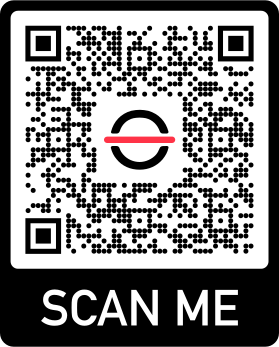
Scan with your camera, or point it at the QR code to open the App Store.

Download on the App Store
QR code linking to the barKoder demo app on the App Store

Android phones and tablets

barKoder demo app for Android

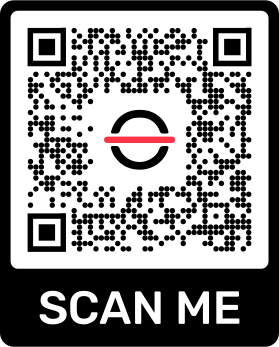
Scan with your camera, or point it at the QR code to open Google Play.

Get it on Google Play
QR code linking to the barKoder demo app on Google Play

Any modern browser

barKoder web demo

Runs the Web SDK in your browser, on desktop or mobile, with nothing to install.

Open the web demo
QR code linking to the barKoder web demo

Test with known samples. Print or display the testing sheet and scan each 1D and 2D barcode with the demo app. The data sheet summarizes the SDK for your team.

Python barcode reader questions

How do I read a barcode from an image in Python?

Initialize the SDK with your license key, enable the barcode types you need, then load the image as grayscale with cv.imread(path, cv.IMREAD_GRAYSCALE) and pass it to BarkoderSDK.decodeImage(img, width, height). The call returns JSON. Parse it with json.loads and read resultsCount, barcodeTypeName and textualData. The Python general example shows each step.

What is the best Python barcode scanner library?

For clean QR codes and common 1D barcodes, pyzbar or zxing-cpp can be enough. If your images include Data Matrix, PDF417, DotCode or postal codes, damaged or blurred barcodes, or several codes per image, test barKoder on the same folder of images and compare how many barcodes each library decodes.

Which Python versions and operating systems are supported?

Python 3.11 or newer. The barKoder docs cover 64-bit Linux on x86-64, with Ubuntu 22.04 or newer recommended. The barkoder-python-sdk README also provides Linux ARM64, Windows 10 and 11 on x86-64, and macOS 11 or newer for Intel and Apple silicon. Contact barKoder if you need an older Python version.

Can I install the SDK with pip from PyPI?

No. Download the package from the barKoder Developer Portal or clone the GitHub repository. You install opencv-python and numpy with pip, and on Windows you install the SDK wheel included in the package with pip.

Can it read multiple barcodes in one image?

Yes. Call BarkoderSDK.setMaximumResultsCount with a value above 1. When more than one barcode is found, the JSON contains a results list with the type, text, raw bytes and location of each barcode.

Can I decode frames from a webcam or video?

decodeImage takes a grayscale NumPy array, so frames you capture with OpenCV go through the same call. The API reference notes that the multicode caching duration setting is typically useful when scanning from a live camera stream. Most Python projects decode still images.

Does the Python SDK need an internet connection?

Decoding runs offline on your machine. The SDK connects only for the license check. Each machine must reach the licensing server at least once every 30 days to keep returning licensed results.

How does the free trial work?

Generate a key on the trial page or in the barKoder Developer Portal. A trial license lasts 30 days and covers up to 25 devices, with unlimited scans. No credit card is required. For server deployments, see the custom terms on the pricing page.

Read barcodes from your images in Python

Run the barKoder Python SDK on your own images with a free 30-day trial, or talk to an SDK expert about your pipeline.