On this page
In August, Web SDK v1.7.0 gave the browser a multithreaded scanning engine. We also said what was next for barKoder Web, and Search & Find was on that list.
Version 1.7.1 is out. It brings Search & Find to the browser, gives AR scanning a set of new controls, and makes the camera behave on the iPhones your users actually carry.
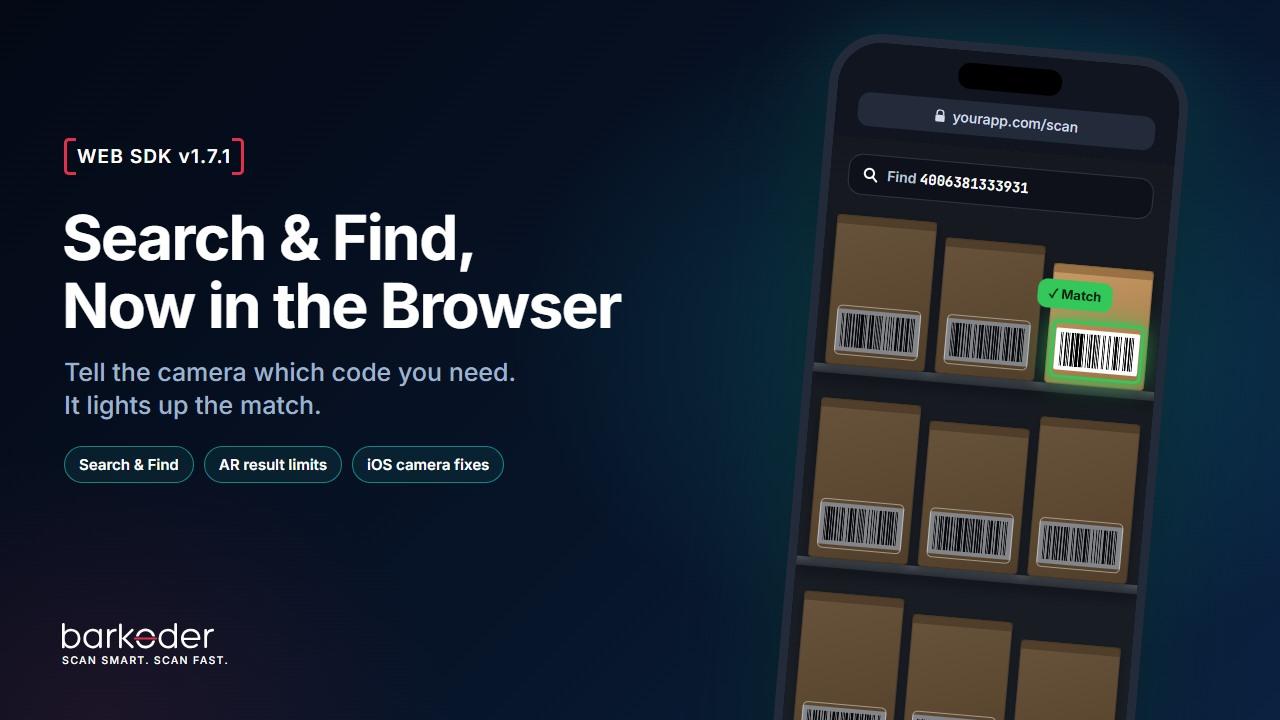
Search & Find, now in the browser
Point the camera at a shelf, a pallet or a box of labels and tell barKoder what you're looking for. The match filter takes the value you want, several values, or a regular expression, just as it does in the mobile SDKs. barKoder checks every decoded code against it and marks the ones that match. (For a walkthrough of the workflow, see Search & Find: a smarter way to locate the right barcode.)
- MatchFilter AR mode highlights the matching codes on the live camera view.
isMatchedon every result tells your code which reads matched.setDisplayOnlyMatchedResultshides everything else from the overlay.setReturnOnlyMatchedResultsandsetReturnOnlyMatchedResultsARdecide whether your result callback gets every code or only the matches.
var Barkoder = await BarkoderSDK.initialize("your_license_key_here");

Barkoder.setARMode(Barkoder.constants.BarkoderARMode.MatchFilter);
Barkoder.setMatchFilter('["4006381333931"]'); // the value(s) you're looking for
Barkoder.setDisplayOnlyMatchedResults(true);  // draw only the matches

Barkoder.startScanner((result) => console.log(result.textualData));
Picking, put-away, inventory checks, finding one parcel in a cage of fifty: the operator stops reading labels and starts looking at the one that lights up.
More control over AR scanning
AR mode now lets you decide when a session has enough codes and when your app hears about them.
setResultLimitstops at a set number of codes. Use it, for example, when a tote always holds six items.setContinueScanningOnLimitkeeps the camera running after the limit, if your flow needs it.setEmitResultsAtSessionEndOnlysends the results once, when the session ends, instead of one by one.- Tapping or clicking a code can now fire the result callback, with a beep, when your flow needs it.
- Switching AR mode during a scan now updates the screen straight away and clears the previous mode's results.
- Smoother transitions and fade-outs on the overlay.
Each new setting has a matching getter, so you can read the current value back at any time.
A steadier camera on iOS
Browsers on iOS keep changing how they handle the camera. This release follows them:
- iOS 26 and later: the browser could report camera permission as granted when it wasn't. barKoder now detects that and handles it.
- iOS 15: barKoder now asks for camera permission properly.
- iOS 27: a workaround for the camera preview showing black borders instead of filling the view.
- Every iOS device: the camera preview is now drawn on a canvas by default instead of a video element. This avoids the occasional preview rendering problems seen on iOS 27.0.1. The new
canvasPreviewoption ofinitializeturns this on or off on any device.
var Barkoder = await BarkoderSDK.initialize("your_license_key_here", {
  canvasPreview: true   // on by default on iOS only
});
Smaller fixes
- The paused AR view (double-tap or click to freeze) no longer fades out the codes on screen.
setCustomOptionworks again.- The image data of a captured frame is passed through correctly.
- The Web SDK build with OCR starts with lower memory use.
How to update
- npm:
npm install barkoder-wasm@1.7.1 - SDK portal: download Web SDK v1.7.1, or the build with OCR, from the repository.
- The full method list is in the Web SDK API reference.
If you use obtainVersionedBinary, browsers will fetch the new .wasm file straight away instead of a cached copy.
Try it on your hardest codes
Open the barKoder Web Demo on your phone, or start a free 30-day trial and point the Web SDK at the labels your current scanner struggles with.