When there is only one barcode visible, scanning it is simple.
However, that is rarely how real-world settings operate.
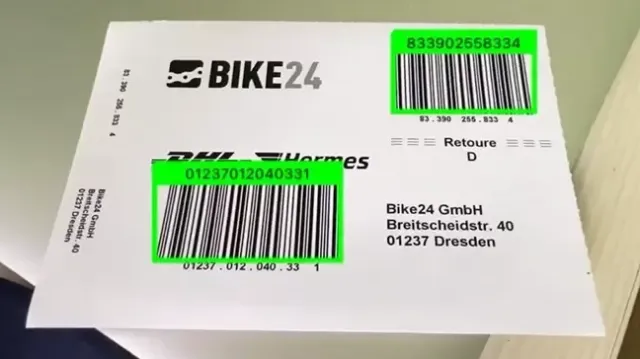
You may be able to see dozens of barcodes if you aim a camera at a warehouse shelf. When you scan a retail display, several products may show up at once. There may be multiple codes vying for attention when you look at a shipping pallet, document, car, or piece of equipment.
"Can I scan a barcode?" is no longer the issue.
It turns into:
"Is it possible for me to locate the precise barcode I need?" barKoder Search & Find can help with that.
A more intelligent and engaging method of barcode scanning is introduced by Search & Find. Rather than taking the first legitimate barcode that the camera finds, developers can specify to barKoder exactly what outcome they are looking for and let the scanner continuously search the camera view until it finds it.
When detecting a barcode isn’t enough
The basic process of traditional barcode scanning involves pointing the camera at a barcode, detecting it, decoding it, and returning the result.
When there is only one pertinent barcode, that functions flawlessly.
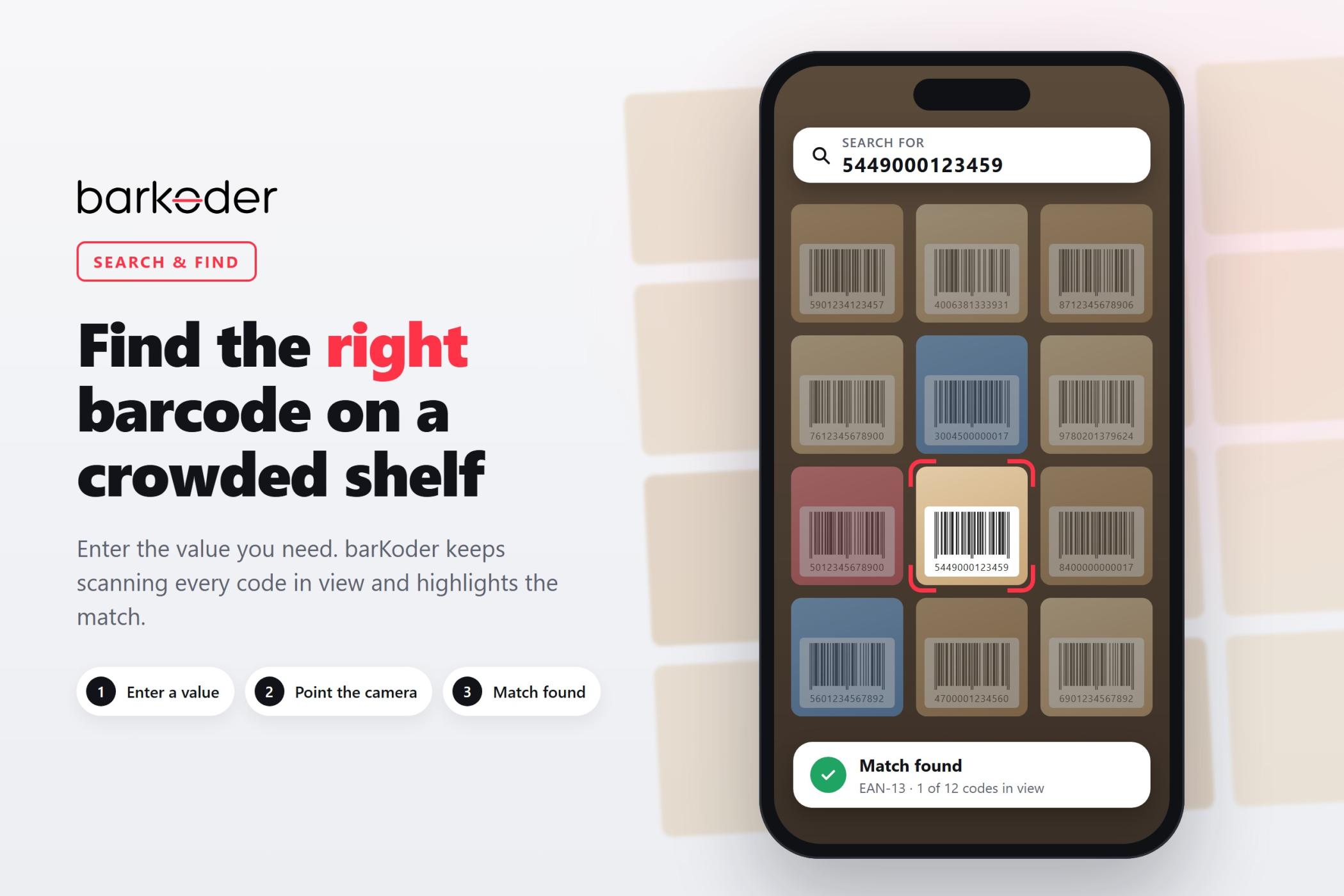
However, picture a warehouse worker searching for a particular item with barcode 5449000123457. Each of the twenty items on the shelf has a unique barcode.
In the absence of Search & Find, the user might have to scan multiple products before the right one shows up.
The workflow is entirely altered with Search & Find.
After the user inputs the required barcode value and directs the camera toward the shelf, barKoder keeps examining the codes that are visible until it finds the desired one.
The scanner does more than simply locate barcodes. It locates the crucial barcode.
How Search & Find works
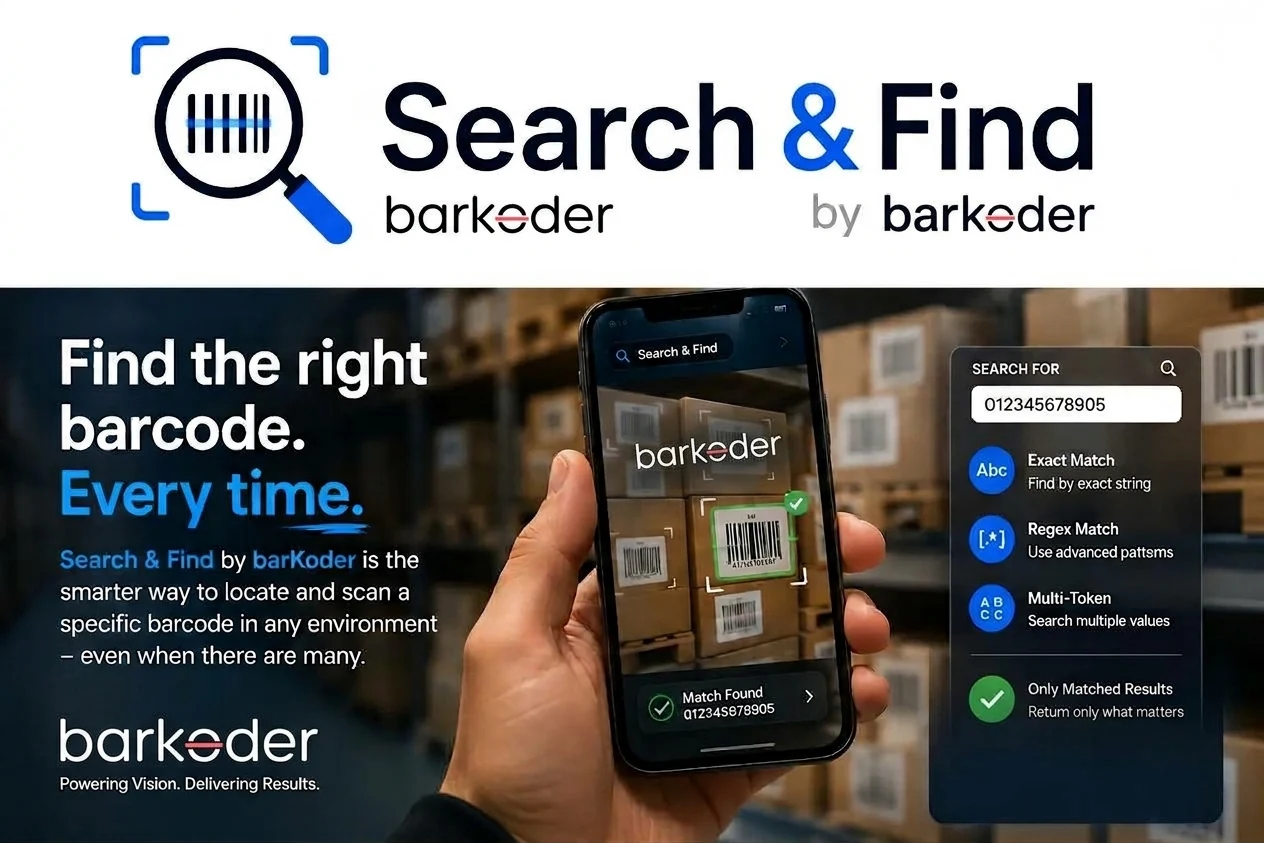
At the heart of Search & Find is a flexible result filtering mechanism that gives developers control over which decoded results should be considered a match.
The system supports several ways to define what the application is looking for, including:
- Exact string matching for precise barcode values.
- Regular expression matching for more advanced search patterns.
- Regex flags, including case-insensitive matching.
- Multi-token input when applications need to search for multiple values.
Every decoded result also carries an explicit isMatched state. This allows an application to distinguish between a barcode that has been detected and one that actually satisfies the requested search criteria.
Developers can then control the returned results using returnOnlyMatchedResults.
When enabled, barKoder returns only results that match the search criteria.
When disabled, non-matching results can still be returned but they are clearly identified as unmatched.
This gives developers the flexibility to decide how much information their application needs.
From “scan anything” to “find this”
This distinction might sound small, but it can completely change the user experience.
Imagine a worker standing in front of a shelf containing dozens of products.
Instead of:
Scan → Check result → Scan again → Check result → Repeat
the workflow becomes:
Enter target → Point camera → Search → Find
The camera can continuously inspect the environment while the filtering logic determines whether a detected barcode is the one the user requested.
That means the user doesn't have to manually inspect every result.
barKoder does the searching.
Search & Find in the warehouse
Warehouses are one of the most obvious places where Search & Find can make a difference.
Dozens or even hundreds of distinct products, boxes, labels, and inventory codes can be found on a single shelf. Manually scanning every visible barcode can quickly become inefficient when a worker needs to find a single item.
The employee can use the camera to scan the entire area while entering the necessary barcode using Search & Find.
For tasks like finding a specific product, confirming inventory, locating a particular package, or identifying an item among visually similar products, this can be helpful.
Storage locations where multiple barcodes are visible within a single camera frame can also benefit from the same idea.
Retail: finding the right product among many
Retail environments present a similar challenge. Numerous barcodes may be crammed closely together on a shelf, product rack, or promotional display. Several of them may be successfully decoded by a traditional scanner, but this does not guaranty that the product the employee is looking for has been located.
Search & Find gives the scanning process more context.
Rather than just asking:
“What barcodes can you see?”
the application can ask:
“Can you find this specific barcode?”
That makes the scanning experience much more targeted.
Shipping and logistics
Shipping environments can be even more challenging. Packages and pallets may contain multiple labels, barcodes, tracking identifiers, and other machine-readable information. The user may know exactly which identifier needs to be verified but still have to locate it visually.
Search & Find can help applications narrow the process down to the specific barcode value they are expecting.
For logistics workflows, this can mean fewer unnecessary scans and a more controlled verification process.
Documents can have the same problem
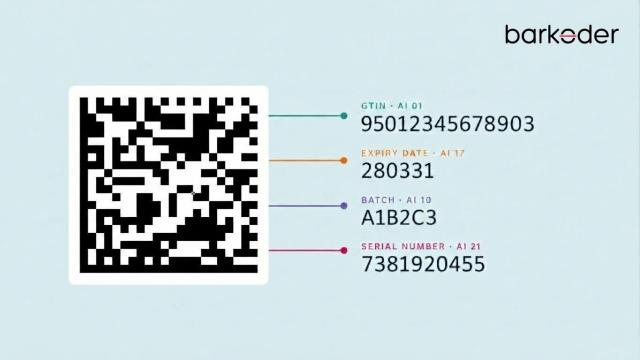
The problem extends beyond tangible goods. Multiple barcodes, QR codes, and other machine-readable elements can be found in documents. It might be necessary for a user to find one specific identifier without unintentionally choosing another.
Developers can specify the desired outcome and filter decoded values using Search & Find.
Applications involving forms, invoices, certificates, shipping documents, identification paperwork, and other documents where multiple codes may appear together can benefit from this feature.
Less manual searching, fewer opportunities for error
The fact that Search & Find alters the user's role is one of its main benefits. The application can provide that logic rather than requiring users to manually determine which detected barcode is the right one.
All the user has to do is tell the application what they require.
The process is straightforward:
Enter the barcode value
The user provides the barcode they want to locate.
Point the camera at the relevant area
The camera can see multiple barcodes at the same time.
Let barKoder continuously search
Detected results are evaluated against the defined matching criteria.
- Find the target
Once the requested barcode is identified, the application can react accordingly.
It is a small change to the scanning workflow, but it can eliminate a lot of unnecessary interaction.
More than just filtering results
Search & Find isn't simply about hiding unwanted results.
The explicit isMatched state gives developers additional information about every decoded result. This means applications can build their own logic around matched and unmatched codes.
For example, an application could:
- Highlight the matching barcode.
- Ignore unmatched codes.
- Display matched and unmatched results differently.
- Trigger an action when the requested code is found.
- Continue showing all decoded codes while clearly identifying the target.
- Build custom visual guidance around the matching result.
This makes Search & Find particularly interesting when combined with interactive scanning interfaces.
Search & Find meets Advanced AR
When paired with barKoder's Advanced AR features, Search & Find becomes even more potent. It's not necessary for a number to appear on the screen after barcode scanning.
Experiences that use detected barcodes as interactive visual components can be created by developers. It is possible to highlight, select, track, or use a matching barcode to initiate another action within the application.
This allows for scanning experiences that, in contrast to conventional barcode scanning, feel a lot more like visual navigation.
Rather than merely informing the user:
“Barcode detected.”
an application can guide them toward:
“This is the barcode you're looking for.”
That difference matters when there are many codes in view.
Flexible enough for developers
Not every application needs the same matching behavior. Some workflows require an exact barcode match. Others need pattern-based matching, while some applications should return only the requested result and others need access to every decoded barcode, together with its match status.
That’s why Search & Find offers multiple levels of control.
With exact matching, developers can search for a specific barcode value. With regular expressions, they can define more advanced matching rules, while regex flags provide additional flexibility for adapting matching behavior to the application’s needs.
The returnOnlyMatchedResults option gives developers further control over the output. They can filter out unmatched barcodes or keep all decoded results available to the application, along with their matching status.
The result is a flexible feature that adapts to different scanning workflows instead of forcing every application into the same behavior.
Real-world barcode scanning is rarely perfect
Barcode scanning demos often show a single, perfectly positioned barcode against a clean background.
Real life looks very different.
Barcodes can be:
- Close together.
- Partially obscured.
- Printed on different surfaces.
- Located at different distances.
- Surrounded by other visual information.
- Positioned at different angles.
- Displayed on multiple products at once.
In these situations, simply detecting a barcode isn't necessarily the goal.
The real goal is identifying the correct barcode.
That's the problem Search & Find is designed to address.
A better scanning experience starts with a better question
Conventional barcode scanning queries:
"What was detected by the camera?"
With Search & Find, the program can pose a far more practical query:
"Did the camera locate the barcode I'm trying to find?"
What makes the feature so helpful is the change from detection to intention.
The scanner is now more than just a code-reading device. It is incorporated into a process that aims to locate particular data.
Built for applications where every second counts
Small improvements to a routine process can add up quickly in manufacturing, retail, logistics, inventory, inspection, and other operational environments.
Hundreds or thousands of times during the day, an employee must manually scan five or ten barcodes in order to locate a single item.
That procedure can be made more straightforward with Search & Find:
Look. Find. Verify.
A more concentrated application workflow and less user interaction result from less pointless scanning.
Search smarter with barKoder
Decoding more barcodes won't be the only goal of barcode scanning in the future.
The goal is to improve the intelligence and utility of barcode scanning.
Even when several barcodes are visible at once, developers can specify what they are looking for and provide users with a quicker way to find the correct code with barKoder Search & Find.
Search & Find adds a new degree of control to barcode scanning from warehouse shelves and retail displays to shipping labels, documents, vehicles, and equipment.
Don't just scan what's in front of you.
Find exactly what you're looking for.
Search & Find with barKoder
Less searching. Fewer mistakes. Faster scanning.
Here are the steps to enable the AR Model for Match Filter on both Android and iOS in our documentation:
You can find the complete setup instructions and code examples on our Documentation page.
Check out the YouTube Shorts preview below to see how fast barKoder pinpoints target codes:
- Shorts Video: Watch barKoder Search & Find Short