Warehousing industry

Warehouse barcode scanning SDK for receiving, picking and inventory

Add barcode scanning to your WMS or inventory app on phones, tablets, Android mobile computers and browsers. Count a shelf in one camera view with Batch MultiScan, find one item among dozens with Search & Find, and read small or worn labels in poor light.

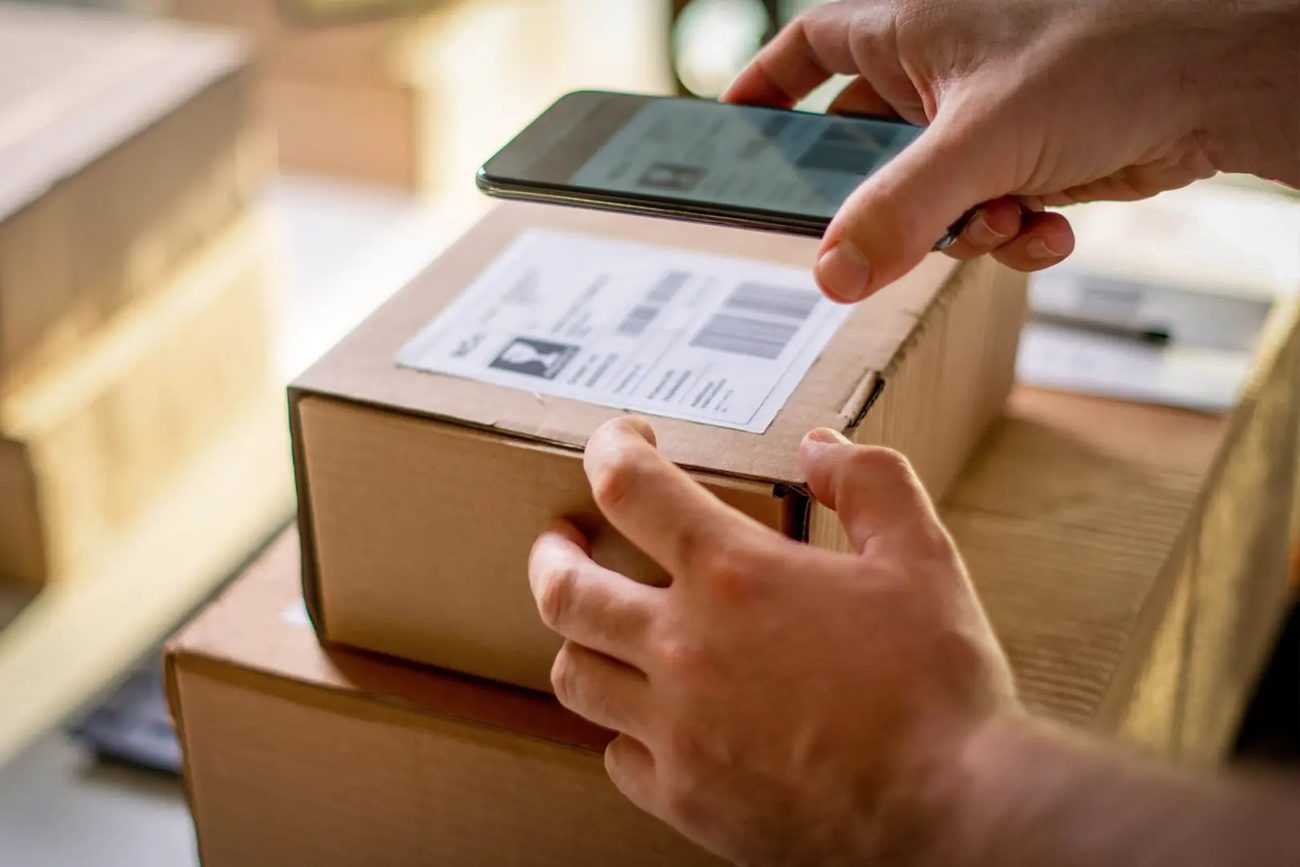
Worker scanning a shipping label on a carton with a smartphone

Warehouse barcode solutions that live in your app

Pickers, receivers and stock counters don't all scan the same way. barKoder gives your warehouse app a scanning mode for each task and runs on the devices your team already carries.

Pick the right scanning mode

  • Single scan: accept one valid result and close the camera.
  • Continuous Scanning : scan item after item without reopening the camera.
  • Batch MultiScan : capture every relevant code in one camera view.
  • Search & Find : locate one requested code among many.
Start an SDK trial

Software scanning next to your hardware

Run camera scanning on phones and tablets where flexibility matters, and keep rugged mobile computers for high-volume or harsh areas. One SDK covers both.

  • Zebra Registered ISV Partner
  • Barcode Scanner by barKoder validated at Zebra's Global Enablement Center
  • Web SDK for browser-based WMS screens and workstations
Read the inventory app guide

Barcodes in warehouse workflows

From the receiving dock to the cycle count, each task asks a different question of the scan.

Receiving

Continuous Scanning and GS1 Parser

Scan items, cases and pallets as they come off the truck and compare them with the purchase order. Reject an immediate duplicate when the camera stays on the same label.

Continuous barcode scanning →

Putaway

Product plus location

Scan the product, then the bin or rack label, to confirm the item is stored in the right place. A GS1 location label can carry a GLN in Application Identifier (414).

GS1 Parser →

Picking

Search & Find

Enter the item the order needs and point the camera at the shelf. The scanner keeps checking every visible code until it finds the match, instead of returning the first barcode it sees.

How Search & Find works →

Cycle counts and stocktaking

Batch MultiScan with AR Mode

Read many barcodes on a shelf in one view. AR Mode highlights SKUs during cycle counts and bin checks and shows which items are already scanned, so nothing is missed or counted twice.

Batch MultiScan →

Small codes in dark aisles

Small, damaged and low-light codes

Read tiny barcodes and QR codes in low light where a hardware reader can't be placed at every location. MatrixSight® adds reads of QR and Data Matrix codes with damaged finder patterns.

MatrixSight →

Returnable assets and equipment

GRAI and GIAI

Track pallets, crates and totes with a GRAI (8003), and individual equipment with a GIAI (8004), as records separate from your stock.

Parse GS1 asset identifiers →

From warehouse barcode scan to inventory record

The scanner reads the code. Your app decides what it means before stock changes.

  1. Decode The SDK turns the camera image into barcode data, on the device.
  2. Parse The GS1 Parser splits GTIN, batch, expiry, serial or SSCC into fields.
  3. Validate Check the symbology, the expected identifier and your business rules.
  4. Update Post to the WMS, and decide whether a repeat scan adds one or is ignored.

Warehouse barcodes and where you'll see them

Common symbologies inside the warehouse
Symbology Where it appears
Code 128 and GS1-128 Pallet and case labels with SSCC, batch and expiry; item labels tracked through the warehouse
ITF-14 Corrugated cases and cartons; encodes a 14-digit GTIN
EAN and UPC Retail products arriving at, or leaving, the warehouse
Data Matrix and GS1 DataMatrix Small parts and medicine packs with GTIN, expiry, batch and serial
QR Code Asset tags, inventory and shipment tracking, GS1 Digital Link

One scanning engine for handhelds, tablets and browser-based WMS screens

Use the native Android and iOS SDKs on phones and mobile computers, the Web SDK in browser-based warehouse apps, Windows and Linux SDKs at workstations, or Flutter, React Native, .NET MAUI, Capacitor, Cordova and NativeScript.

  • 7 native & desktop SDKs
  • 6 cross-platform integrations
  • One consistent scanning core

Warehouse and inventory teams using barKoder

Stockrooms, storage and supply warehouses that replaced free libraries or hardware readers.

Try barKoder on your phone or in your browser

Install the free barKoder demo app, or open the web demo, and scan your own barcodes before you integrate the SDK.

iPhone and iPad

barKoder demo app for iOS

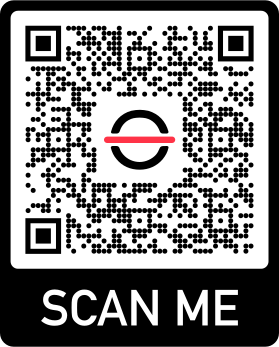
Scan with your camera, or point it at the QR code to open the App Store.

Download on the App Store
QR code linking to the barKoder demo app on the App Store

Android phones and tablets

barKoder demo app for Android

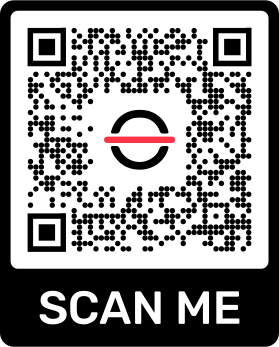
Scan with your camera, or point it at the QR code to open Google Play.

Get it on Google Play
QR code linking to the barKoder demo app on Google Play

Any modern browser

barKoder web demo

Runs the Web SDK in your browser, on desktop or mobile, with nothing to install.

Open the web demo
QR code linking to the barKoder web demo

Test with known samples. Print or display the testing sheet and scan each 1D and 2D barcode with the demo app. The data sheet summarizes the SDK for your team.

Warehouse barcode scanning questions

Which barcodes are used in a warehouse?

Most warehouses see Code 128 and GS1-128 on pallet and case labels, ITF-14 on cartons, EAN and UPC on products, and Data Matrix or QR Code on small items and asset tags. barKoder reads all of them, along with DataBar, PDF417, DotCode and more.

Can phones replace dedicated warehouse scanners?

In many workflows they can, provided the device meets your needs for camera quality, battery life and durability. Dedicated scanners or rugged mobile computers can stay where work is intensive or the environment is harsh. barKoder runs on both: the Barcode Scanner by barKoder app was validated at Zebra's Global Enablement Center for Zebra mobile computers.

When should I use Batch MultiScan, Continuous Scanning or Search & Find?

Use Continuous Scanning to process cartons one by one at receiving or packing. Use Batch MultiScan when several relevant labels are visible together, as in a cycle count. Use Search & Find when a picker needs one specific item among dozens of labels on a shelf.

Does it work in a browser-based WMS?

Yes. The WASM Barcode Scanner SDK scans inside your web app on laptops, tablets and phones, with Batch MultiScan available. MIT Group and Method both run barKoder in the browser.

Can warehouse barcode scanning work offline?

Scanning runs on the device. The SDK goes online only for the license check, and each device must reach the licensing server at least once every 30 days. Local storage and syncing stock changes when Wi-Fi returns are up to your app, so test the whole task offline.

Can the SDK read lot, expiry and SSCC from GS1 labels?

Yes. The GS1 Parser turns GS1-128, GS1 DataMatrix and GS1 QR content into labelled fields such as GTIN, batch, expiry, serial and SSCC, so your app doesn't split the string itself.

How can I try barKoder in my warehouse?

Get a free trial license for 30 days on 25 devices and test it with your own labels, aisles and devices. For help, write to support@barkoder.com.

Add warehouse barcode scanning to your app

Test Batch MultiScan, Search & Find and continuous scanning on your shelves with a free 30-day trial, or talk to an SDK expert about your WMS.